|
|
|
| Mon Apr 7, 2008 - 2:01 AM EDT - By Jay Gross | |
|
|
|
Our discussion this time takes up where Part 6 left off, in the second panel of settings of the Preferences screen. If you�re new to this series, or new to the Centro, here�s what we�ve covered to date:
The new AT&T Centro complicated matters, beginning with Part 4, since it differs from the Sprint version. I don�t have an AT&T model, but I�ll try to point out any differences that I know about. Meanwhile, don�t worry if my screens don�t exactly match yours. For one thing, the AT&T Centro Applications screen, which we mention frequently, has an extra icon, �Push to Talk.�
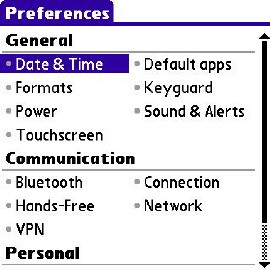
Drag you chair closer, fire up your Centro, and get the Applications app running. Scroll down (scrollbar far right, or use the Down button on the 5-Way Navigator) till you see the icon named �Prefs.� Tap it.
We explored alternate routes and the �All� menu in Part 6 so refer to the first few paragraphs of that article if you�re confused on how to get here.
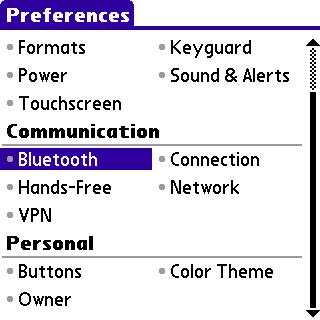
The Preferences screen has three sections, General, Communication, and Personal. The Communication category manages settings for:
We�ll usher each in turn to the Explanatorium.
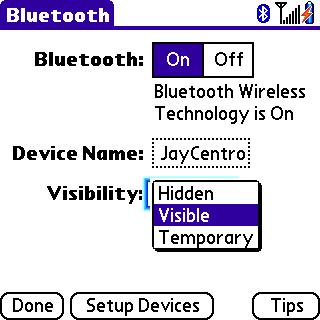
The most important part of the Preferences > Bluetooth screen is its simple toggle � Off or On. Bluetooth is a networking protocol that enables your Centro to send and receive wirelessly (ahhhhh!) to and from headsets, hands-free devices, computers, GPS receivers, firedogs, and other contraptions. Okay, no firedogs. Yet.
Bluetooth is not the only networking the Centro has, but it�s wildly popular, particularly for headsets and hands-free devices. These gizmos let you roam the streets and avenues while talking on the phone,without a holding a phone up to your ear. I used to think this looked spacey and weird - till everybody on the planet started doing it. Including me!
While Bluetooth is on, the Centro polls to see if anything is going on. It�s like electronically yelling �Hey, is anybody out there?� If you�re not using Bluetooth, it�s a good idea to keep this polling off, especially if you need all the battery life you can get between charges. If you have no Bluetooth devices, there�s no reason for it to be on, anyway, and it�s pretty simple to come here to Prefs and toggle it as needed.
On this screen, the Device Name box contains the identification that your phone broadcasts to Bluetooth devices during the pairing process and while devices communicate. This defaults to �Palm Device,� but you should probably put in the name you assigned to your Centro for the HotSync process. Anything will work, but if you have multiple Bluetooth devices to deal with, some of it could become confusing, and it�s best if no two of them are the same.
The Visibility selector lets you choose whether your Centro is �discoverable� to other devices. When this is off, your phone will not identify itself to any Bluetooth devices that are asking if anybody is out there. So, other Bluetooth networks in your vicinity won�t �see� your Centro � it�s a security thing.
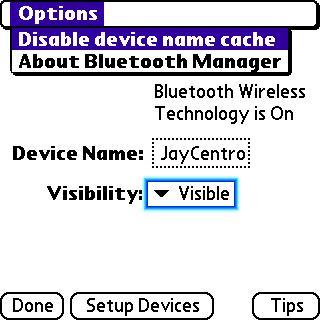
A pulldown menu offers the opportunity to disable the device name cache. This is relevant only after you have several devices, perhaps some that you no longer use. Enabled, the cache spends less time looking for devices during discovery. With cache disabled, discovery is slower, but the most current device names will always appear.
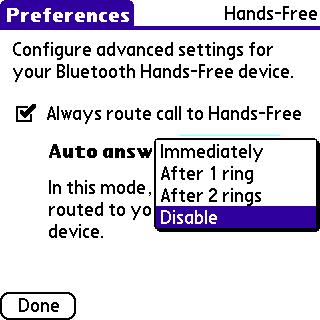
The next item down in the Prefs/Communication menu is Hands-Free, which starts, �Configure advanced settings for your Bluetooth Hands-Free device.� Why this isn�t simply bundled into the Bluetooth menu, I can�t imagine. All it does is set your preferences for whether the Centro routes audio to the Bluetooth device, if there is one, and whether you want the external device to answer automatically.
I use �headset� as a general term for �headset or hands-free device.� Basically, I think of a �hands-free� as a headset on steroids � namely, something for the car that pipes audio to a speaker, for example, so I can drive the car without betraying to potential road ragers that I�m talking on the phone. I�ve reviewed several hands-free speakerphones.
There are only two settings. First is whether you want calls �always� routed to the external device (if there is one). The default is Yes. You can simply leave this on, even if your Bluetooth headset is turned off � or at home in a drawer. It only asserts itself if the Centro detects that such a device is connected.
The Auto-Answer setting lets you decide whether your headset can take charge, and if so how many rings before it picks up. Those give you time to tap �Answer� if you want to. I leave this setting disabled.
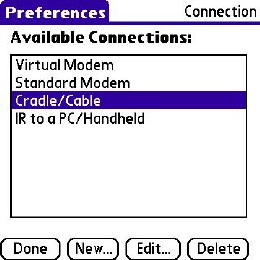
The connection option applies only to how you want the Centro to HotSync and with what device. The choices are:
A �virtual� modem is software, not hardware. It�s what you�d use to HotSync by Bluetooth. I don�t know why you�d do that, as it�s slower and more complicated, but use it if you must. There are no editable settings.
The �Standard Modem� option assumes you have a normal computer modem hooked up in some way to your Centro. Likely, you don�t, but a screen of settings lets you set up how the real modem is really connected. For real. I�ll leave you to wonder about all of this, since this is a newbie�s series, and this stuff is post-graduate level.
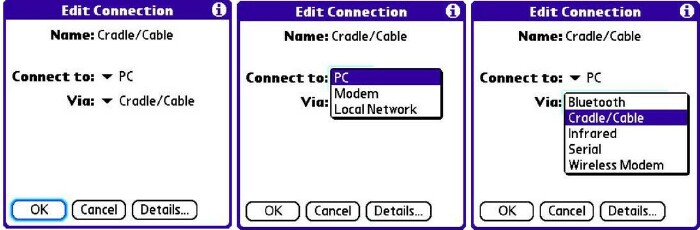
Cradle/Cable is what you actually have. The �Cable� comes in the Centro box. Cradles add a cute little stand and other features. This is the option to choose unless you have some overriding reason otherwise. Tap Cradle/Cable (it�s the default), and you can then edit parameters if you need to. You probably won�t need to.
On the edit screen, you can choose where the option connects � PC, Modem, or Local Network. The �Via:� option makes no sense on this edit screen, but it�s there, so you can configure �Cradle/Cable� to be something else besides cradle or cable. My advice: leave it alone. The most convenient way of HotSync�ing a Centro is by pressing the little round button on the USB cable that comes with it.
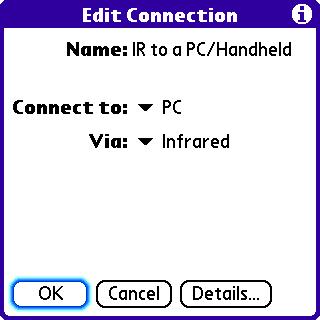
�IR to a PC/Handheld� lets you HotSync over the �air� using an infrared connection. IR is the system by which most TV remotes talk to their targets. Centros and many other cell phones have this capability. You can install an IR port in your computer, or it might have come with one.
The usual use of the IR port is �beaming� between two phones (works great between two Palm devices). However, this isn�t where you set that up! This option sets up a full HotSync between devices over the IR port. Pack a lunch. It�s going to take a while.
The buttons at the bottom let you create a new way of connecting, if this list doesn�t meet your needs. You can also edit parameters associated with each connection (except �Virtual modem,� which is not editable).
The Delete button does what its name applies, but I suggest you leave it untested. Set up HotSync the way you want, and leave the rest of the stuff for later study. Or not.
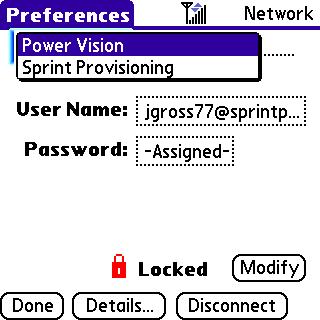
The �Network� option in your Centro�s Prefs app is where you set up the geeky details of your smartphone�s ability to access the Internet for email and web browsing. Most likely, the carrier (AT&T or Sprint at this writing) has set this up for you, and if not you should return there to get this done. It�s a picky, complex process. Look, for example, at the �Details� screen.
If your provider has already set this up, the screens will probably show the �Locked� icon that you see in my screenshots. The only place you can unlock the settings is on the opening screen for the category. Tap the �Modify� button next to �Locked.� I recommend you don�t do this! Leave it locked and duplicate it (see pulldown menus), instead, for editing.
The �Service� dropdown�s choices on my Sprint Centro are �Power Vision,� Sprint�s name for their Internet connection service, and �Sprint Provisioning.� The latter enables the provider to send small pieces of software that control how the smartphone accesses the cell towers. There�s nothing humanly useful or even understandable in the Provisioning screen, and it defaults to �Locked,� anyway.
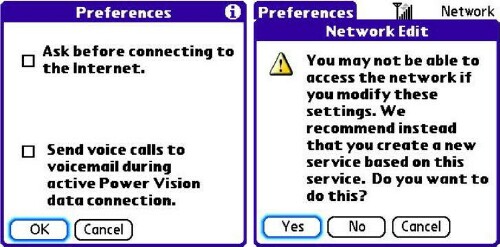
The far right menu item includes yet another �Preferences� option. It lets you choose to have the Centro ask before connecting to the internet � useful if you�re in a place where that�s prohibitively expensive, for example. You can also choose to send all voice calls to voicemail while you�re on the Internet, for uninterrupted browsing. I leave this off. Palm OS, the operating system underneath �it all� on the Centro, does not multitask, so you can�t do both, anyway.
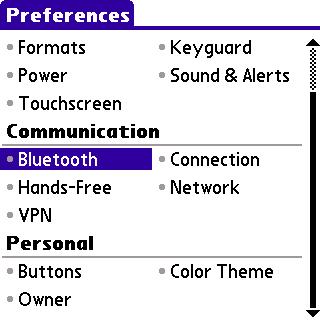
For Bluetooth headsets, the Communication submenu offers that all-important choice: off or on. We�ve explored and explained, but skipped over stuff that only the carriers should deal with. If you have any burning questions, relative to Centro or not, email the author, and nominate them for a trip to the Explanatorium. As always, next time, next topic.
Copyright 1999-2016 TreoCentral. All rights reserved :
Terms of Use : Privacy Policy
TREO and TreoCentral are trademarks or registered trademarks of palm, Inc. in the United States and other countries;
the TreoCentral mark and domain name are used under license from palm, Inc.
The views expressed on this website are solely those of the proprietor, or
contributors to the site, and do not necessarily reflect the views of palm, Inc.
Read Merciful by Casey Adolfsson